

XWiki comes with a default set of commands that enable you to use keyboard shortcuts to save time, without having to take your hands off the keyboard and use the mouse instead. Whether you're using macOS, Windows, Linux, or any other operating system, there are many ways to make your XWiki experience and collaboration smooth, from leaving comments easily, and navigating through your wiki pages, to renaming pages and editing rights access.
View Mode
Don't worry! You will not get unexpected behavior when pressing various keys by mistake. View keyboard shortcuts are only available to advanced users.
Edit Actions
| E | Edit the page using the default edition mode |
|---|---|
| K | Edit the page in wiki edition mode |
| G | Edit the page using the WYSIWYG editor |
| F | Inline Form |
| R | Edit page access rights |
| O | Edit page objects |
| S | Edit class |
View Actions
| C | Go to page comments |
|---|---|
| A | Go to page attachments |
| H | Go to page history |
| I | Go to page information |
| D | View page wiki code |
Other Actions
| F2 | Rename page |
|---|---|
| Delete | Delete page |
Edit Mode
| Alt + C | Cancel edition |
|---|---|
| Alt + P | Preview the page without saving |
| Alt + Shift + S | Save and continue to edit the page |
| Alt + S | Save and view the page |
WYSIWYG Edit Mode
Here is some basic need-to-know information that can help you work your way around the WYSIWYG editor:
- standard keyboard shortcuts provided by CKEditor, independent of its integration in XWiki
- XWiki custom shortcut keys:
\\ \\\ (open square bracket) provided by XWiki's custom [link plugin; @ (at sign) provided by Mentions Application;
\\ edit form shortcut keys to preview, save or cancel the edit form.
- custom shortcut keys that an administrator can add using the keystrokes CKEditor configuration parameter from the dedicated administration section.
For more in-depth tips & tricks to using the WYSIWYG edit mode check out the WYSIWYG Editor keyboard shortcuts.
Administration Section
Preview Mode
| Alt + C | Cancel edition |
|---|---|
| Alt + B | Back to the edition |
| Alt + Shift + S | Save and continue to edit the page |
| Alt + S | Save and view the page |
Annotations
| Ctrl/Cmd + M Ctrl/Cmd + I | Annotate a piece of text |
|---|---|
| Alt + A | Show annotations |
Navigation
| Ctrl/Cmd + G | Jump to any page in the wiki |
|---|
Developer shortcuts
The following key sequences can be used to toggle specific actions on the currently logged-in user:
| x x x a | Toggle advanced user mode for the current user |
|---|
| x x x h | Toggle hidden pages for the current user |
|---|
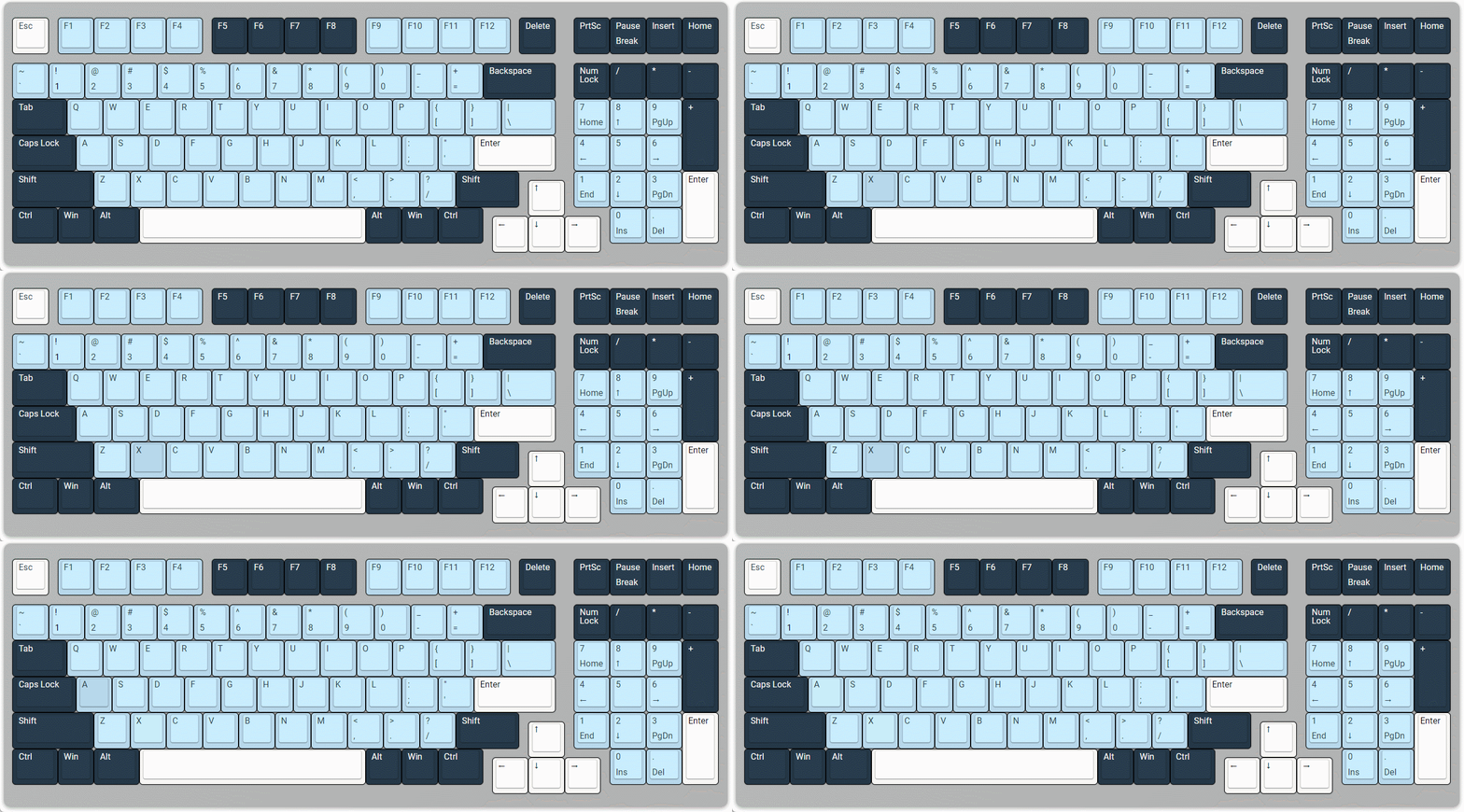
After pressing the x x x a key sequence, you will be notified that the REST request is successful and can now freely use the keyboard shortcuts.
Extra resources: now that you are a power user in the XWiki environment and can easily navigate through content with our keyboard shortcuts, you can check out some more useful links below: